
No products
Please follow the instructions in the video, or the step-by-step guide below ↓
IMPORTANT
- Do not change the account email, doing so will result in a locked game, and you won’t be able to play it anymore.
- Do not deactivate or change the account 2-step settings, doing so will result in a locked game, and you won’t be able to play it anymore.
- Do not delete the account, doing so will result in a locked game, and you won’t be able to play it anymore.
- Do not deactivate the account, doing so will result in a locked game, and you won’t be able to play it anymore.
- Changing the PS5, formatting the PS5 or changing the HDD of the PS5 will lead to an unplayable game, sometimes this can be fixed, so you can download the game again, but you are doing this at your own risk. If this happens please come on Live Chat, and we will check the account.
- The account can be activated ONLY ON ONE PS5. We are not responsible if you already activated it on another PS5 before.
- Before you purchase any DLC, Season Pass, or any kind of In-Game consumables please contact us. We are not responsible for any incompatibilities.
- If the account has to be replaced, any DLC purchased on it will be lost, we only offer warranty for the game.
IMPORTANT - PS Plus
- The games on PS Plus promotions should be downloaded from the account you received from us.
- After the installation you SHOULD play the games from your own personal account (Not from the account you got from us)
- The account you received from us should be used only to install the games included in PS Plus.
How to Install Monthly Games:
- Navigate to the home screen and look for the PlayStation Plus icon (a yellow plus symbol) next to the user’s avatar in the top right corner. The account with the PlayStation Plus subscription will have this icon.
- From the home screen, go to the PlayStation Plus section on the main menu, then select Monthly Games and install the desired game. After the game is installed, switch to your personal account and enjoy the game.
- Important: The account must be signed in as a New User (not as a Guest).
PS5 Tutorial - Step-by-step guide
Step 1. From the first screen you get when you turn ON your PS5 console, pick Add User.
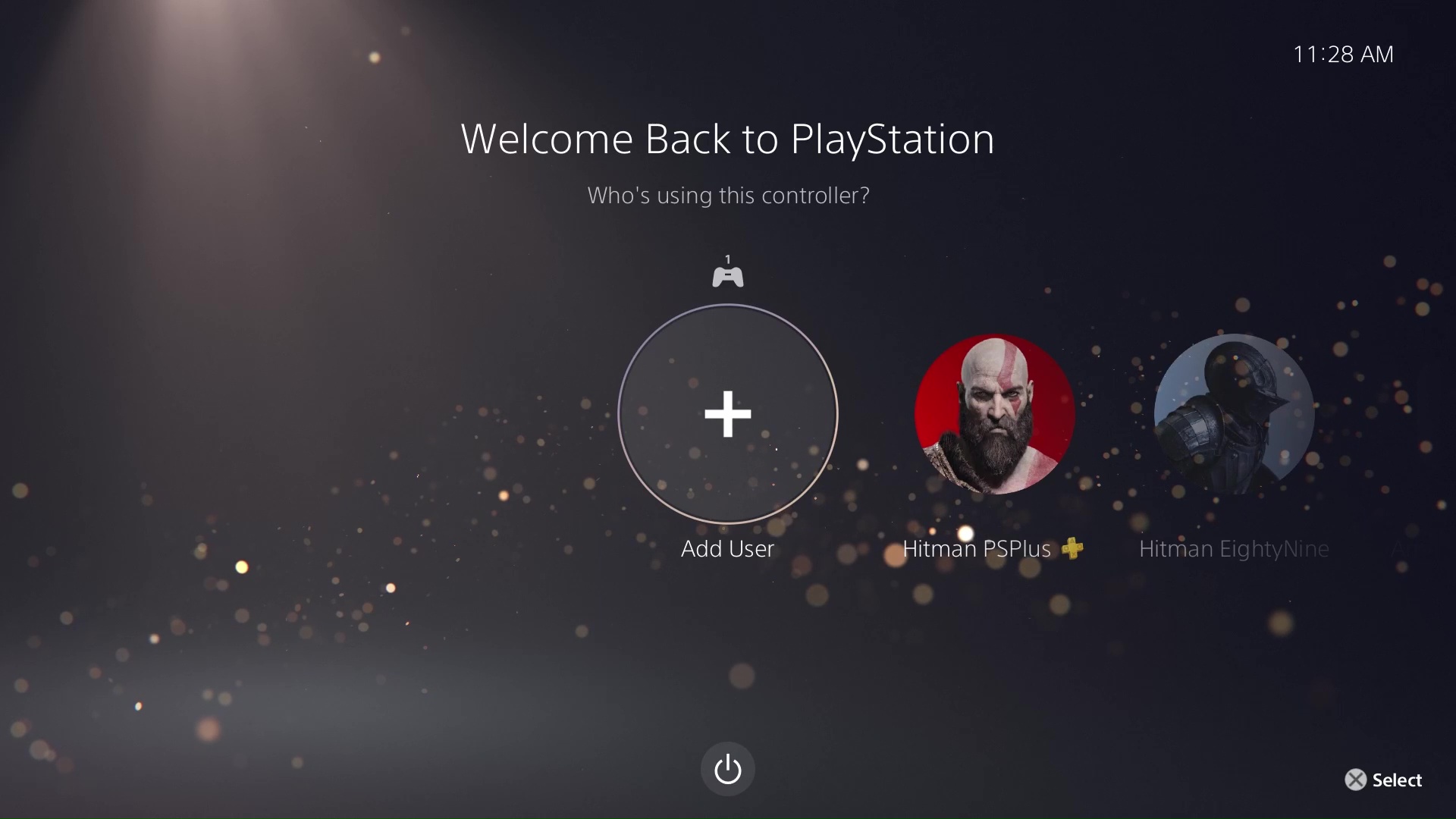
Step 2. On the left side of your screen choose the Get Started button.
(Do NOT use "Play as One-Time Guest" option, because the game will not work on your personal account)
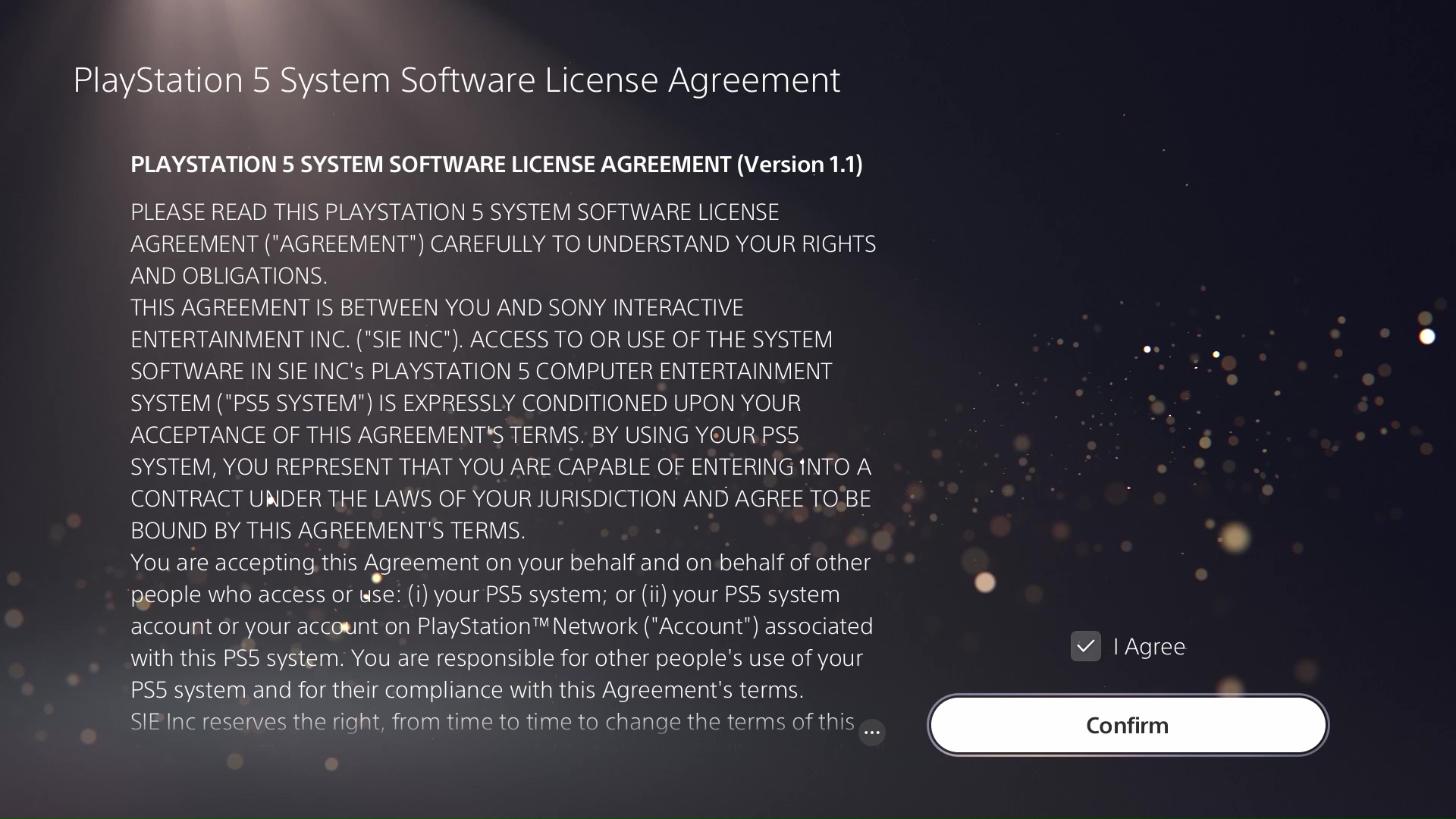
Step 3. Check the I agree checkbox and click the Confirm button.
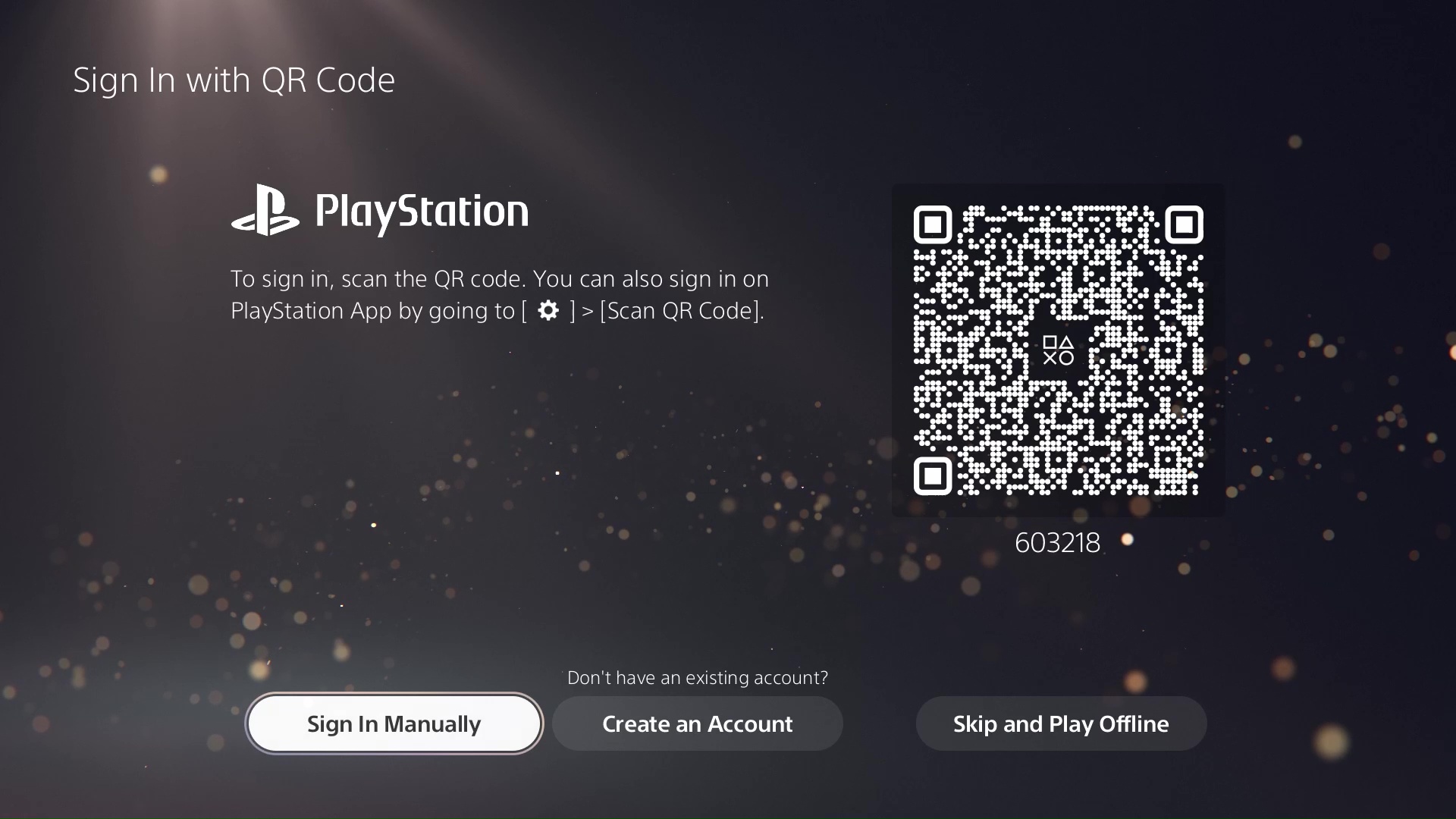
Step 4. Choose Sign in Manually
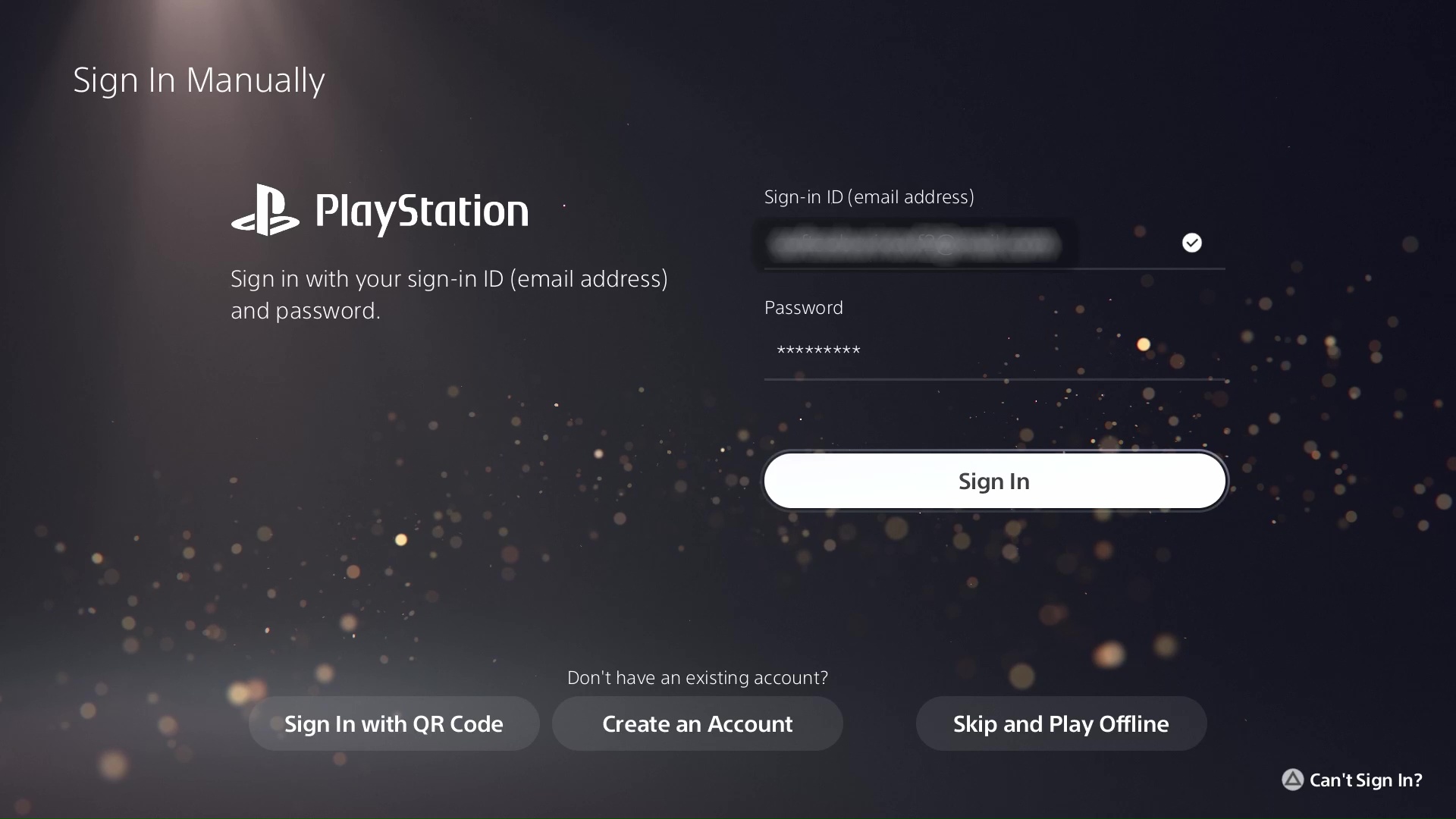
Step 5. Type in the email and password received with your purchase, then press Sign In.
Step 6. Type in the Verification code received in the email with the credentials.
If the verification code doesn't work, use this page to get a new code, or ask on the chatbox on the bottom right of the page.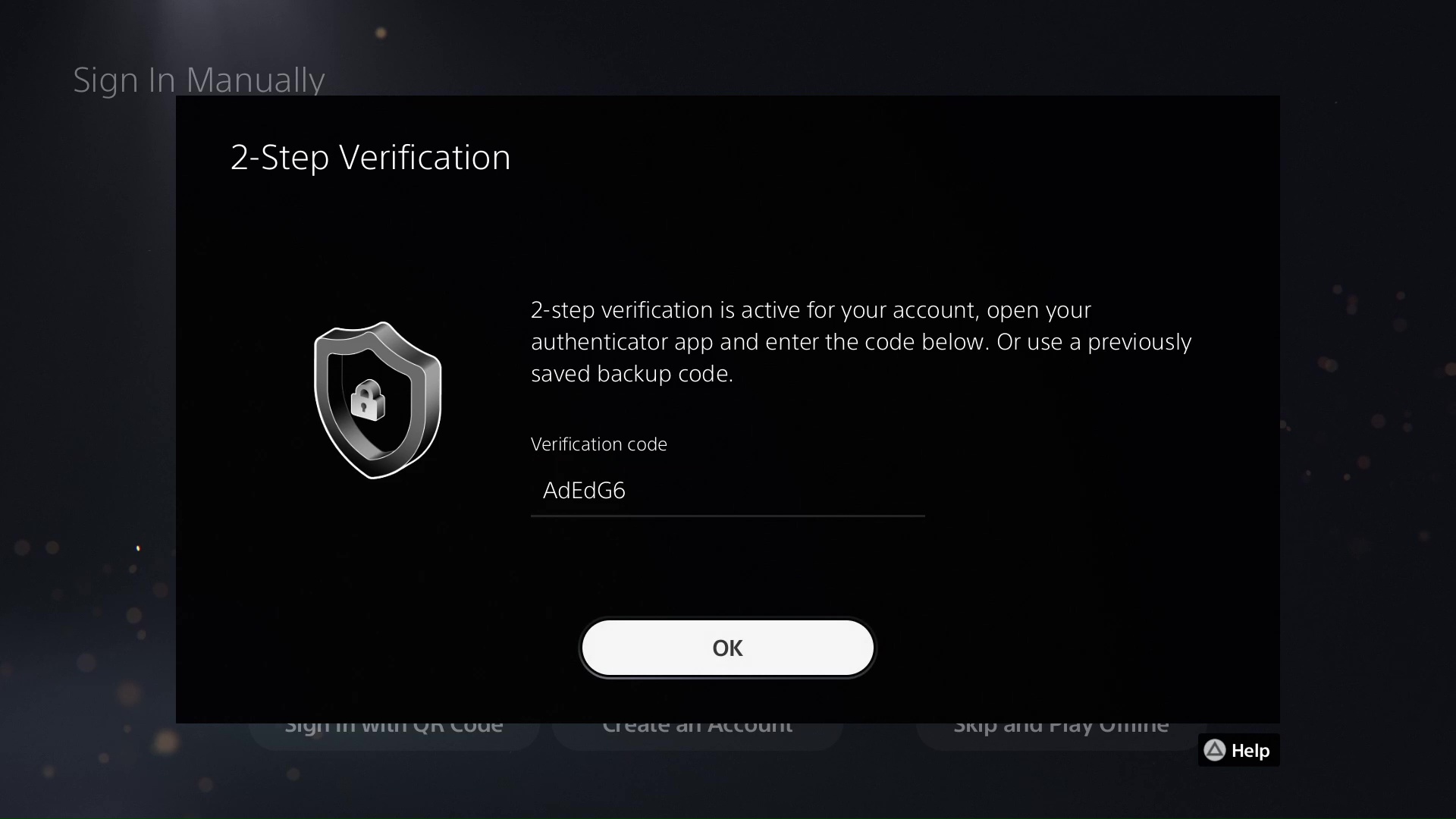
Step 7. If you are asked to upgrade the account, please SKIP this phase.
However, if you've already upgraded it, use this page or talk to us on live chat to receive a new verification code.
Press OK and you will be logged in.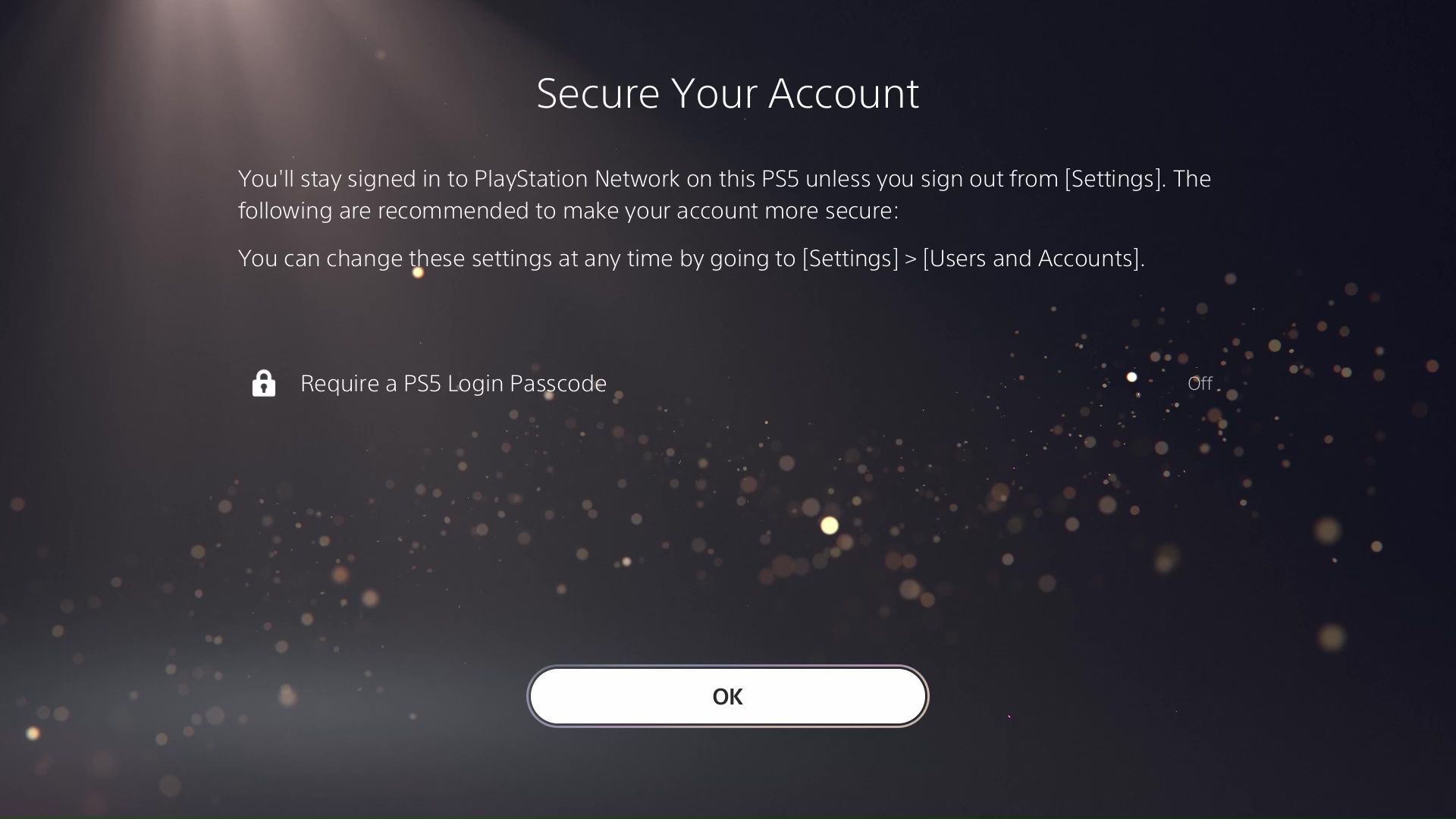
Step 8. Head over to the Game Library then click Your Collection.
There you will find the game you've purchased.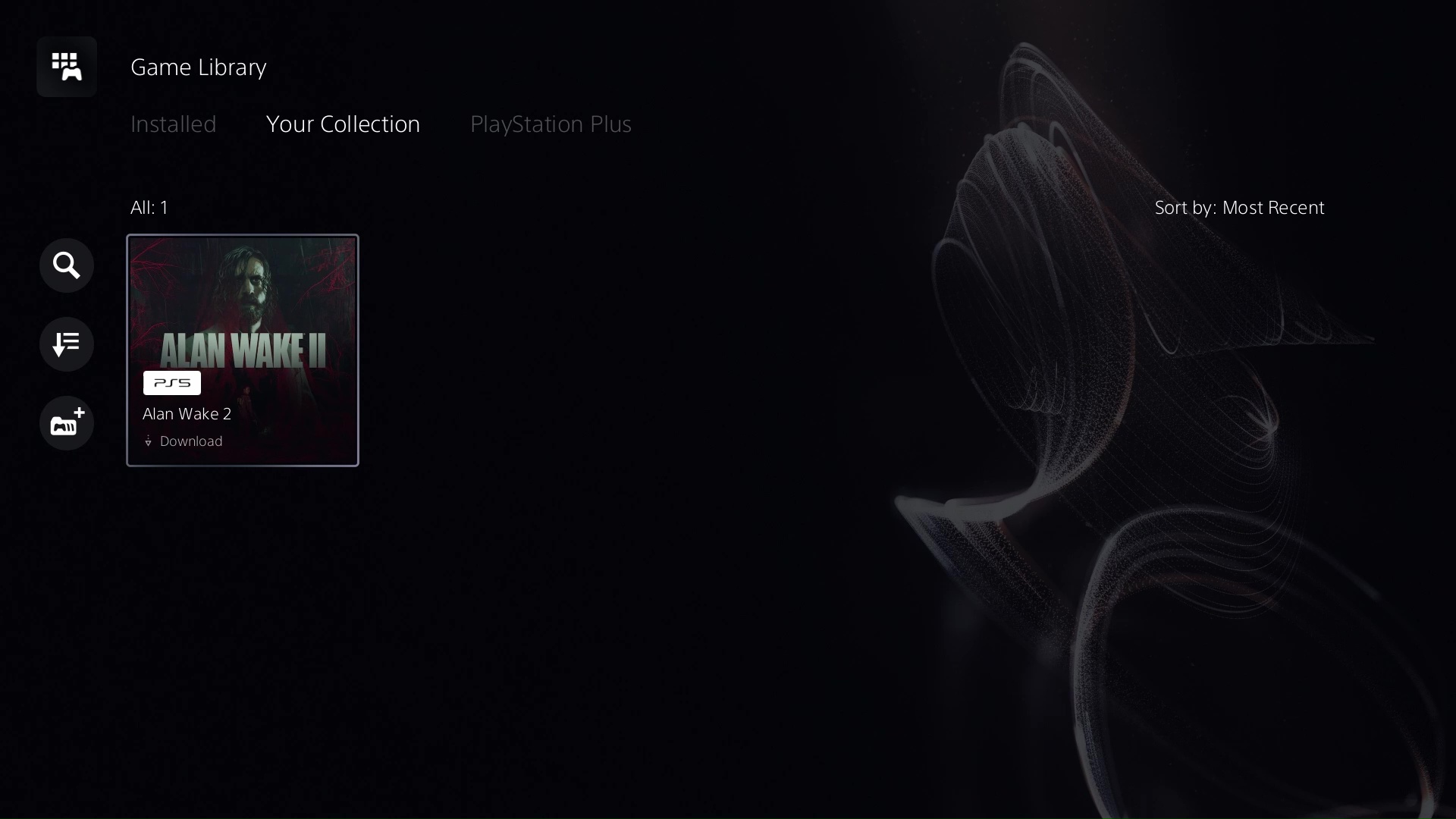
Step 9. Choose Sign in Manually
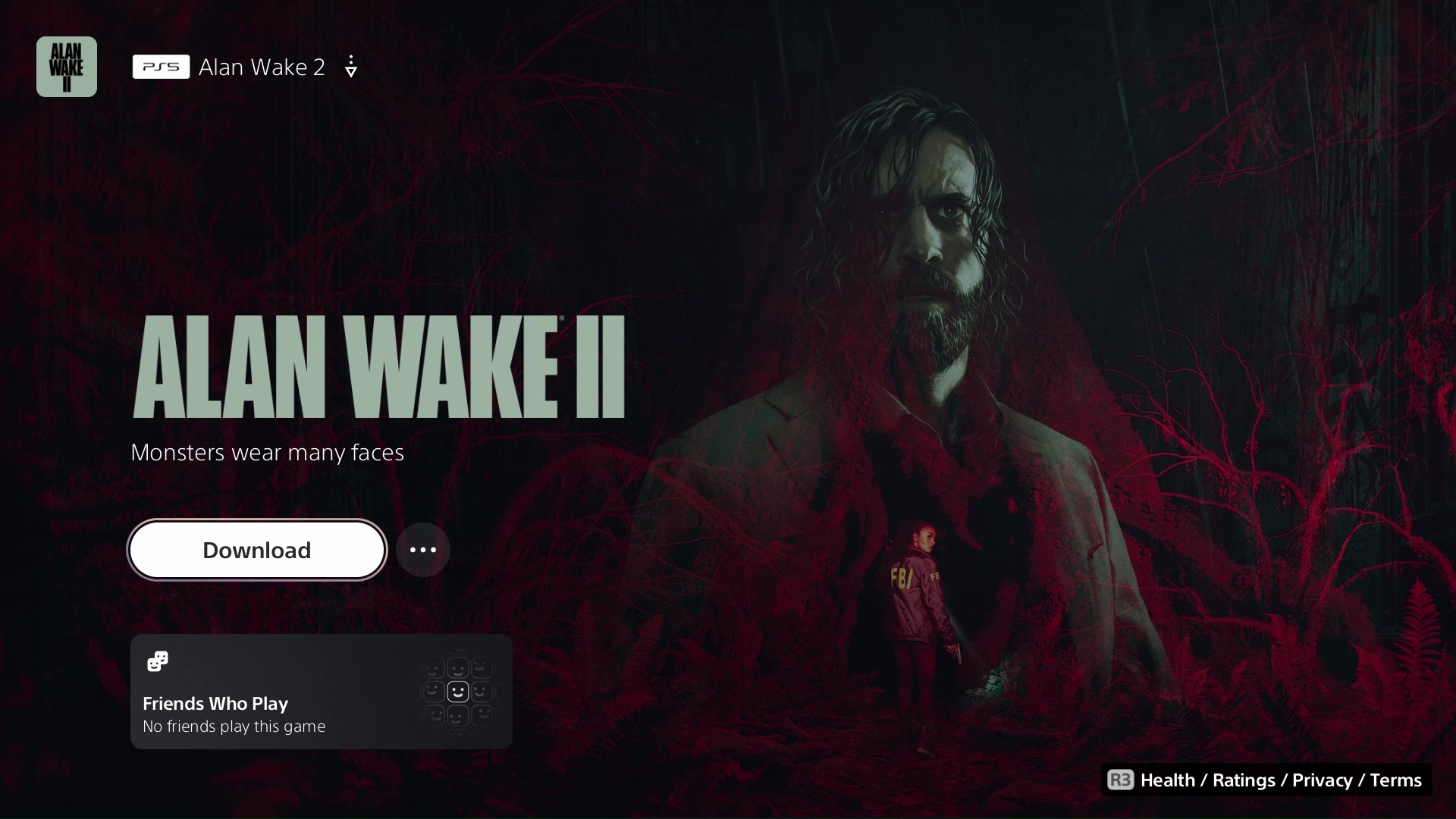
Select your new game and press Download.
Step 10. You can now switch to your personal account, wait until the game is fully downloaded and enjoy it!
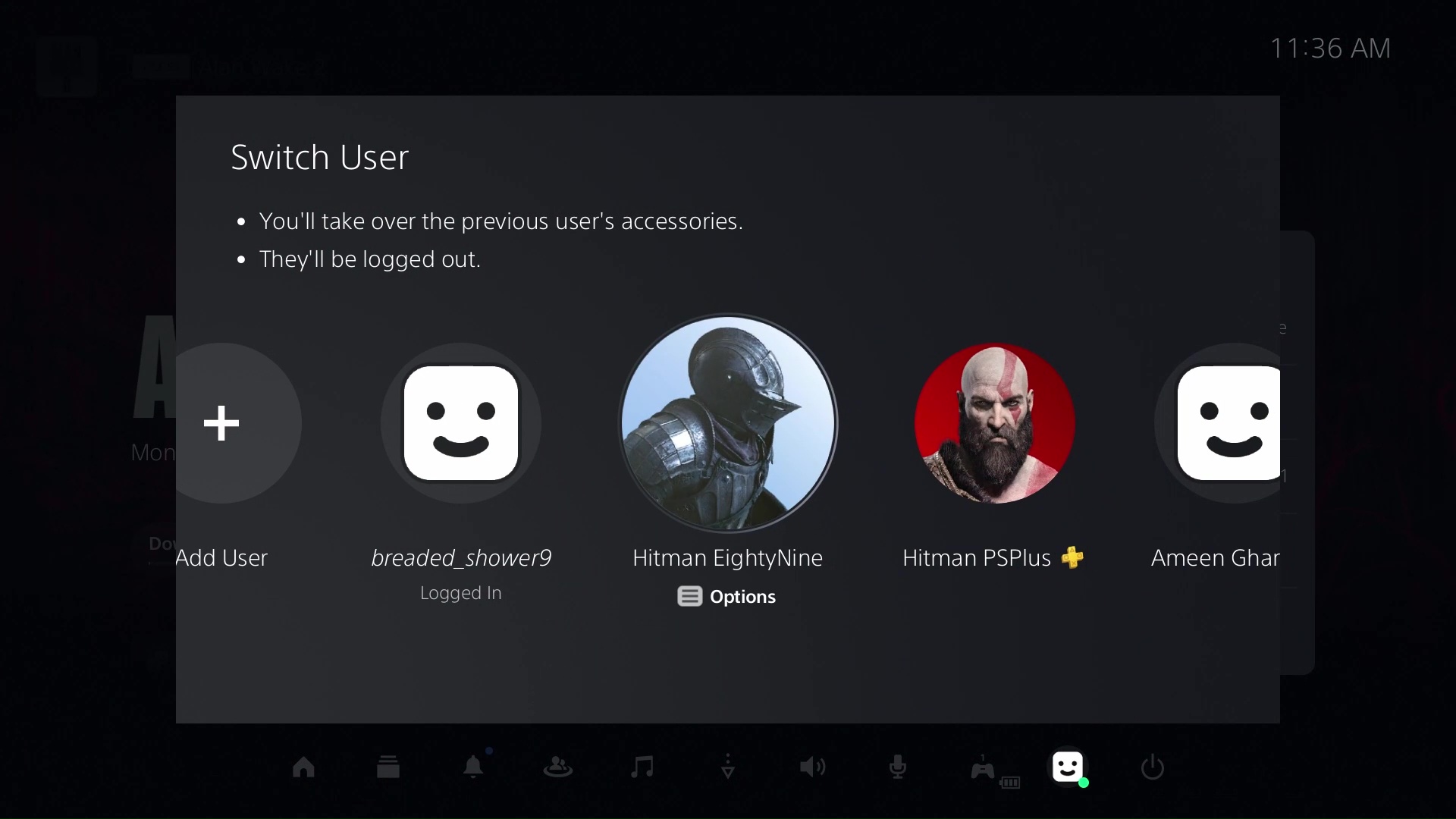

If the game doesn't work on your personal account, please try login again with the received account, use the form to get a new code.

Then go to Settings -> Users and Accounts
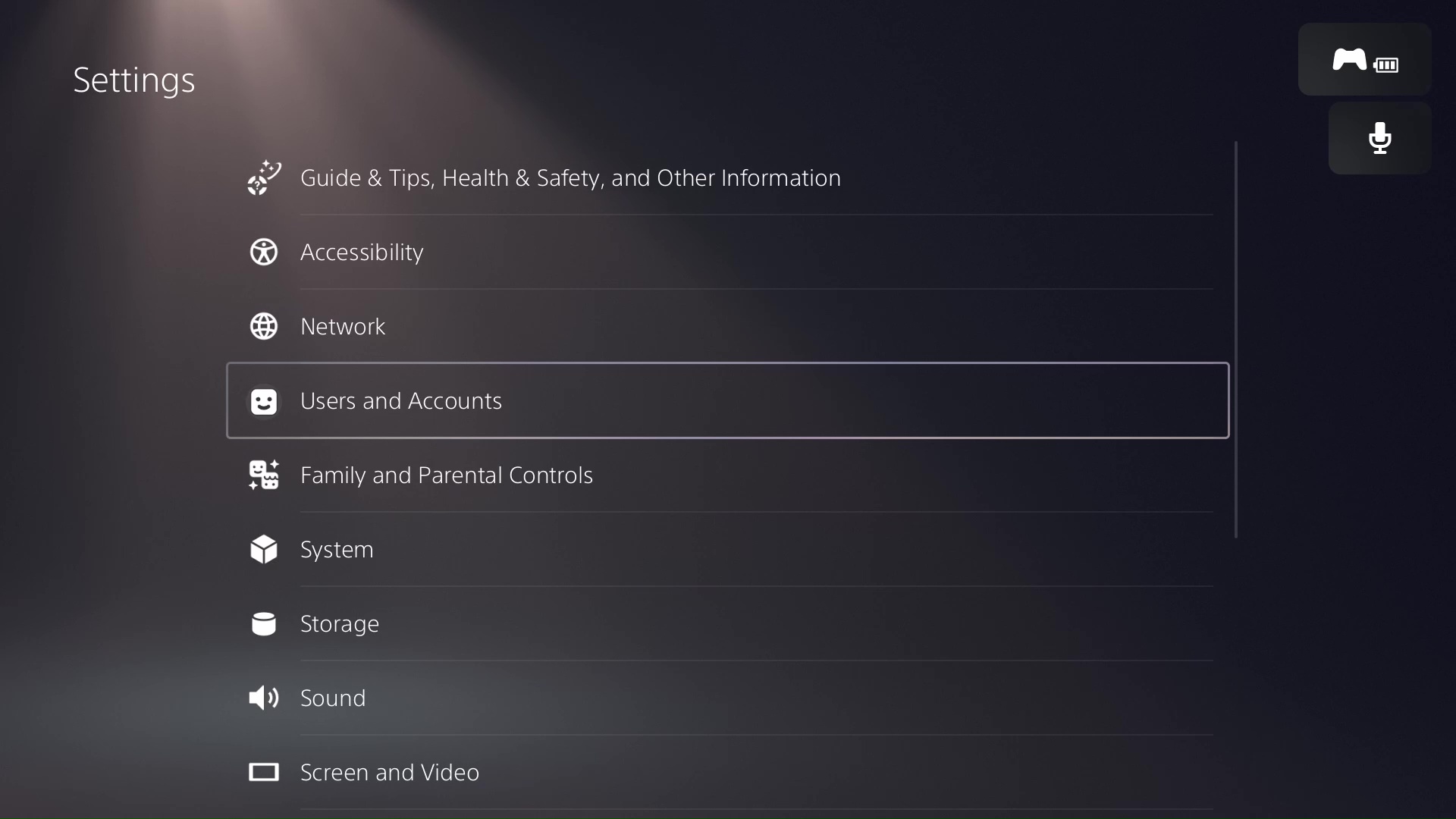
Select Other and Console Sharing and Offline Play.

Make sure Console Sharing and Offline Play is enabled.
Now, maybe you've added the account as a guest and that will make it disappear from your console, so you won't have the possibility to enable "Console Sharing and Offline Play". So please make sure you've added the account as a user and not as a guest.
If the verification code is not working after a few attempts, just repeat the login process. The login will time out after a period of time, and this will make it work again.
If you still encounter problems, please use the live chat service and the agents will help you solve the issue in no time.
Top sellers
-

Red Dead Redemption 2 PS4 PS5
Buy cheap Red Dead Redemption 2 for PS4 & PS5. Cheapest price....
12,42 € -

-

Call of Duty: Modern Warfare Xbox Series X|S Xbox One
Buy account license for Call of Duty: Modern Warfare Xbox Series X|S...
13,11 € -

Call of Duty: Modern Warfare 2 - Cross-Gen Bundle PS4 PS5
Experience intense warfare as you dominate the battlefield in Call of...
15,87 € -

-

-

Minecraft: PlayStation4 Edition PS4 PS5
Buy Minecraft: PlayStation4 Edition for PS4 & PS5. Best price...
12,29 € -

Testimonials ( 310 )
